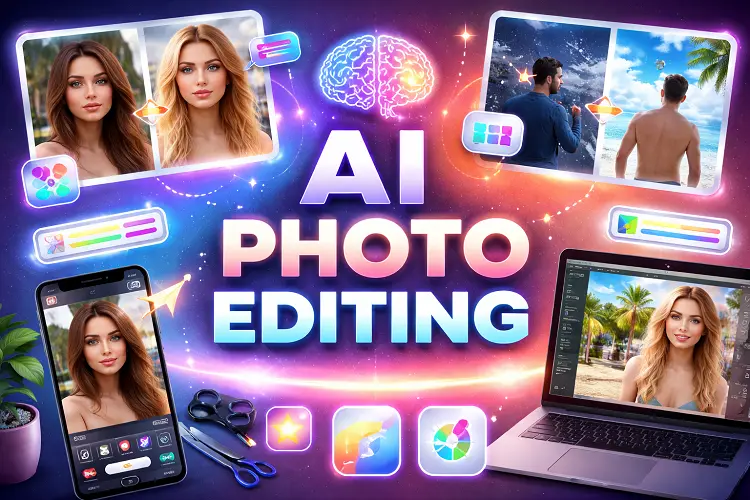
Photo editing has changed a lot in the past year. Photoshop now has a set of AI tools built right in (no plugins, no workarounds) that handle tasks which used to take serious time and skill. Expanding a portrait into a landscape layout, adding cinematic lighting, recovering detail in a low-res image: all of it is now a few clicks away.
These five tips cover the most useful AI features inside Photoshop (and a couple from Lightroom that fit naturally into the same workflow). Each one is practical, specific, and worth trying on your next project.
1. Generative Expand: Resize Any Image Without Cropping the Subject
This one solves a problem that used to be a genuine headache: you've got a portrait, but your client wants a landscape layout. Cropping is out of the question because the subject is already centered. So what do you do?
Generative Expand: Select your layer, grab the crop tool, pick a 16:9 aspect ratio (or whatever format you need), and drag the transform box outward. Then choose Generative Expand from the contextual taskbar, leave the prompt blank, set it to Firefly Image 3, and hit generate.
Photoshop gives you three variations. If none of them click, hit generate again. You can do this as many times as you want. The AI fills in the new space in a way that actually matches the existing image. It doesn't just blur and stretch. Works whether your background is a clean studio setup or a busy outdoor scene.
For professionals and businesses offering photo editing services, this feature makes it easier to deliver multiple image formats quickly without compromising on quality.
Practical use: repurposing content across platforms. You shoot one photo, then make a vertical cut for Instagram, a landscape version for YouTube, and a square crop for wherever else you need it, all without going back to reshoot.
2. Generative Fill: Add Lighting Effects with a Text Prompt
Most people know Generative Fill exists. Fewer people are actually using it creatively. Here's a simple example that changes the whole mood of a portrait:
Select your layer, press Command+A (or Ctrl+A on PC) to select the full image, then open Generative Fill from the contextual taskbar. Type something like: "
“Cast light through window blinds on portrait and background”
Hit generate. What comes back is a version of your photo with realistic light falling across the subject, shadow lines, soft gradients, the works. It even adds depth to the background. If the first result isn't quite right, generate again with the same prompt. You'll get a different variation each time.
You can also try:
- “Add bokeh flares around the portrait in a cinematic way”
- “Add purple bokeh light flares around the edges”
Each prompt produces a completely different look. And because each generation lands on its own layer, you can toggle between them, compare, and pick what works. It gives you more creative options to work with, faster.
3. Generative Upscale with Topaz Gigapixel: Fix Low-Res Images
Got an image that looks soft or pixelated when you zoom in? Instead of going back to the source, try Photoshop's built-in upscaling tools.
Go to Image > Generative Upscale. You'll see a couple of options:
- Firefly Upscaler: Adobe's native tool
- Topaz Gigapixel: better for detailed work, especially faces
- Topaz Bloom: more of a creative upscaler that adds artistic texture
For portraits, Gigapixel with Face Recovery at 2x scale does the best job. It doesn't just add pixels. It reconstructs detail. Skin texture, hair strands, eye detail all sharpen up noticeably. The difference is real and visible, not a marketing claim. Useful for print files, photos from compressed sources, or older images that never had high resolution to begin with.
4. Blemish Removal with Generative AI (Lightroom, but Worth Knowing)
This one technically lives in Lightroom, but if you're doing portrait work in Photoshop, you're
probably moving between both anyway, so it's worth including.
The Generative Remove tool in Lightroom lets you paint over blemishes and lets the AI fill in the skin naturally. No more rubber stamp artifacts or obvious patches. You can also adjust your selection if the first pass clips something it shouldn't (like a lip or eyebrow), then regenerate.
For broader skin work, the masking tools let you select just the facial skin (separate from the body, lips, and eyes) and apply a Smooth Skin preset to the whole area at once. Then create a second mask for just the eyes and run Enhance Eyes on that separately.
It sounds like a lot of steps but it runs fast. The end result looks better than manual retouching in a fraction of the time, mainly because the AI knows what to avoid without you having to tell it explicitly.
5. Smart Object Workflow Before Running AI Edits
This is a workflow tip that makes all the AI tools above much less risky to use. Before running Generative Fill or any AI edit on multiple layers, combine your layers into a Smart Object first. Select all the layers you want to group, go to Layer>Smart Objects>Convert to Smart Object, and now you're working on one layer.
Here's why this matters: if you double-click the smart object, it opens in a separate window
with all the original layers still intact. You haven't flattened anything. You can go back and
change something without losing your work.
If you're running multiple AI generations and want to swap between them later, keeping your original layers inside a smart object means you never have to start from scratch. It's a small habit that saves big headaches.